Most AI-assisted QA workflows assume you have access to everything: Playwright MCP configured in VS Code, Copilot Vision enabled, the embedded browser panel working. In an enterprise environment, those assumptions often don’t hold. Security policies restrict which tools can connect to which services. Features get disabled. The standard setup isn’t available.
This post documents a different approach factoring in certain constraints. The combination: playwright-cli for browser interaction, GitHub
Copilot CLI for the agent loop, and a plain natural language prompt describing
what to test. No MCP. No generated test files. No vision model. Just a coding
agent running shell commands against a real browser.
The constraint
Imagine an organization (surely not a real one) where the standard options for AI-assisted browser testing are unavailable:
- Copilot Vision — disabled by policy blocking preview features
- The VS Code embedded browser — agents blocked from accessing
- 3rd-party MCP servers - blocked
This rules out the typical Playwright MCP + Copilot setup, where the agent streams DOM snapshots and screenshots directly into its context window. That approach requires a persistent MCP connection between VS Code and the browser, which is forbidden by the powers that be.
playwright-cli sidesteps this entirely. It’s a standalone command-line tool
— just shell commands. The agent calls it through the terminal the same way
it would call git or npm. Browser snapshots, screenshots, and video are saved to
disk as files. Nothing gets streamed into the model’s context unless the agent
explicitly reads those files. It’s a meaningfully different architecture from
MCP. It happens to fit cleanly within the constraints.
How playwright-cli works
playwright-cli launched in early 2026 as a
companion to the existing Playwright MCP server. Where Playwright MCP
implements the Model Context Protocol, playwright-cli takes a simpler
approach: plain shell commands.
[as an aside, CLIs are a great way to superpower your LLMs without bothering with MCP servers]
The efficiency of playwright-cli is a key improvement over Playwright MCP. A typical browser automation task consumes
approximately 114,000 tokens via MCP versus 27,000 tokens via CLI. That’s a ~4x reduction!
The basic command set:
playwright-cli open https://example.com --headed   # launch browser
playwright-cli snapshot                             # save element tree as YAML
playwright-cli screenshot                           # save screenshot to disk
playwright-cli click e21                            # click element by ref
playwright-cli fill e8 "hello"                      # fill input by ref
playwright-cli press Enter                          # keyboard input
After each command, the CLI outputs the current page state. The agent reads that state, decides the next action, and issues the next command. It’s stateless from the model’s perspective — each command is independent.
The prompt
The key to getting useful output is a prompt that gives the agent a clear role, explicit constraints, and a structured output format. Here’s what I used for a regression test of a newly shipped account creation feature:
You are a QA engineer performing a regression test. A new feature has
just been shipped. Your job is to verify that existing functionality
still works correctly and that the new feature behaves as expected.

Use playwright-cli to interact with the browser. Do NOT write any
Playwright test files or generate test code. Do NOT use Playwright MCP.
Use only playwright-cli commands to navigate, interact, take screenshots,
and record your findings.

Application URL: https://www.teflgogo.com/

New feature: An account creation flow and account page

Behavior(s) to test:
- Ensure user can create a new account (use test@email.com/password).
- Create an account as an employer.
- Ensure you are redirected to account page after account creation
- Ensure you can return to home page, then return to account page
- Ensure the account page is protected by auth
- Ensure you can log out of your account

Regression test this new behavior and keep an eye out for any visual
or functional issues.

For each area:
- Navigate to the relevant part of the application
- Take a screenshot before interacting
- Perform the key user actions
- Take a screenshot after interacting
- Note whether the feature behaved as expected or produced an error

When finished, produce a regression test report in this format:

## Regression Test Report
**Date:** [today's date]
**Feature shipped:** [feature name]

### Results
Provide a summary of your regression test, including each step, what
you did, what was expected, and whether it passed/failed.

### Screenshots
List each screenshot filename and what it shows.

### Issues found
Describe any failures, unexpected behavior, or visual regressions.
If none, state "No issues found."
Three things this prompt does deliberately:
Explicit tool constraints. “Do NOT write any Playwright test files. Do NOT
use Playwright MCP.” Without this, agents default to what they know best —
writing test code or reaching for MCP. Specifying playwright-cli commands
only keeps the agent in the right mode.
Structured output format. The report template at the end means you get a consistent, readable artifact every time rather than a freeform narrative.
Specific credentials and role. Giving the agent exact test credentials and telling it to register as an employer removes ambiguity. The agent doesn’t have to guess what to fill in.
The output
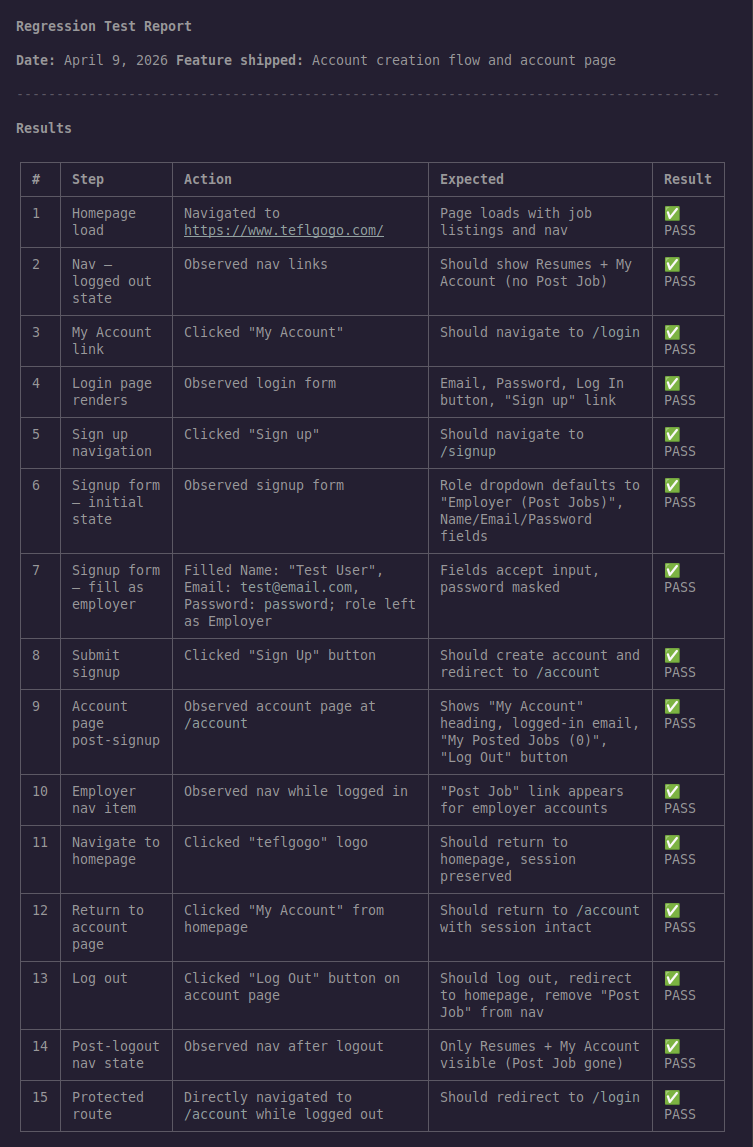
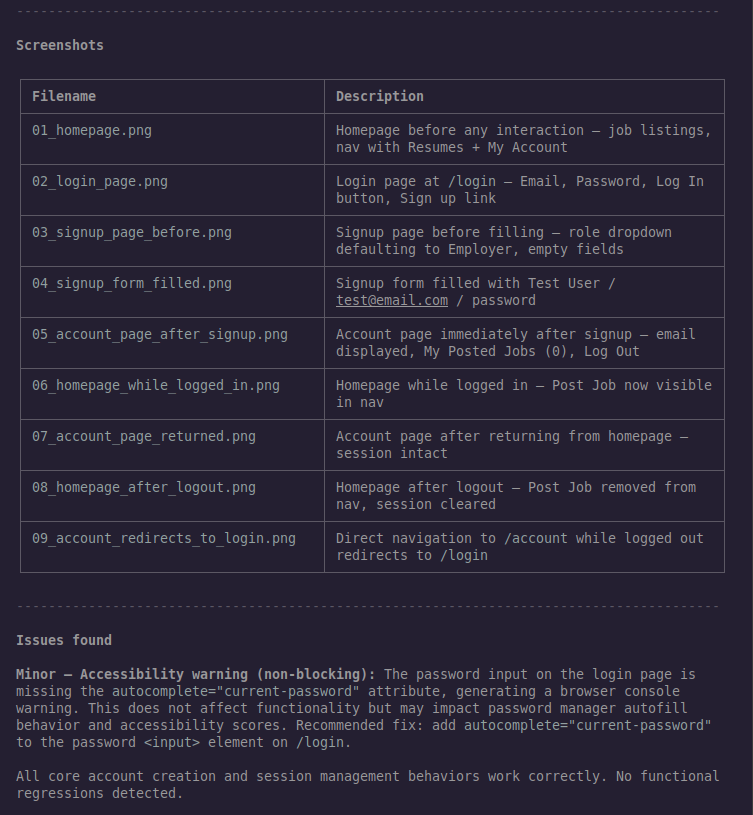
The agent ran 15 steps and produced a complete regression test report. We passed!
The one issue found
The agent caught something that wasn’t in the test instructions:
Minor — Accessibility warning (non-blocking): The password input on the login page is missing the
autocomplete="current-password"attribute, generating a browser console warning. This does not affect functionality but may impact password manager autofill behavior and accessibility scores. Recommended fix: addautocomplete="current-password"to the password<input>element on/login.
This is exactly the kind of finding that would get missed in a manual review. The functionality works — passwords fill, forms submit, authentication passes. The console warning is invisible unless you’re actively watching it. The agent noticed it because it was looking broadly for “visual or functional issues,” not just checking the specific behaviors listed in the prompt.
The recommended fix is one line of HTML. The value of surfacing it isn’t the complexity of the fix — it’s catching it before it affects real users with password managers or assistive technology.
Why this approach works in a restricted environment
The standard recommendation for AI-assisted browser testing is Playwright MCP — it’s more powerful, gives the agent richer context, and enables more sophisticated workflows. If you have access to it, use it.
But playwright-cli has a specific advantage in environments where MCP is
restricted: it’s just a CLI tool. There’s no persistent server process,
no MCP configuration, no protocol bridge. The agent runs shell commands. Those
shell commands happen to control a browser. From a security policy perspective,
that’s a meaningfully different surface area.
The 4x token efficiency is a practical bonus. On a paid API plan it doesn’t matter much. On a free tier or when running many tests in parallel, it compounds quickly.
The reusable prompt template
The prompt from this session generalizes to any web application. The parts to fill in:
Application URL: [your app URL]

New feature: [brief description of what shipped]

Behavior(s) to test:
- [specific flow 1]
- [specific flow 2]
- [specific flow 3]
Keep the behaviors specific and action-oriented. “Ensure user can create a new account” is better than “test the signup flow” — it tells the agent what success looks like, not just where to look.
The output format stays the same across runs, which means you can diff reports between releases, track issues over time, and share results with teammates who didn’t run the test.